How to import Trakt history into LazyWatch
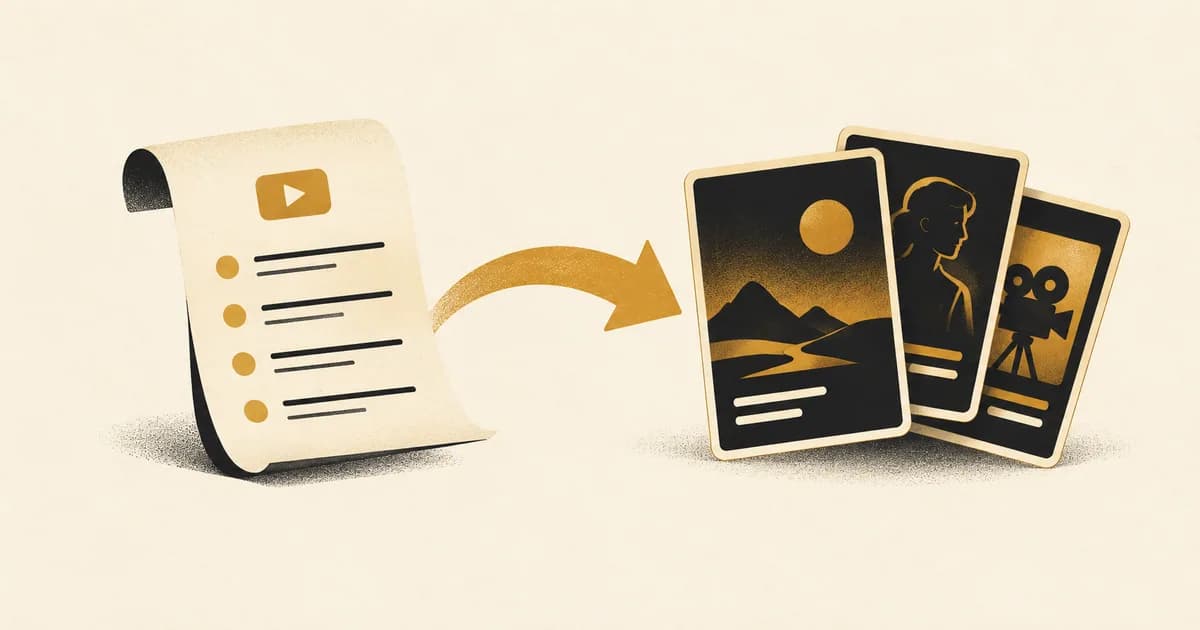
To import Trakt history into LazyWatch, link your Trakt account with a short code. The import brings over watched shows and movies, your watchlist, and ratings without overwriting existing progress.
By LazyWatch5 min read

To import Trakt history into LazyWatch, link your Trakt account with a short code. Your watched shows and movies, watchlist, and ratings come across, and the import adds to what you've already tracked rather than overwriting your progress.
That gets you past the part nobody wants to repeat: remembering which episode you stopped on. Once your history is in place, you can pick up your shows and join the conversations around them.
This guide covers the documented import route, what to check afterward, and the Trakt connection limit that can affect setup. Product guidance and Trakt's connection announcement were checked on October 9, 2026.
How to import Trakt history into LazyWatch
LazyWatch's import feature connects to Trakt with a short code. You don't need to give LazyWatch your Trakt password.
The practical sequence is:
- Open the LazyWatch account where you want your history to land.
- Find the Trakt import option and start the connection.
- Follow the short-code linking instructions shown on screen. Check that you're authorizing the Trakt account containing your history.
- Complete the import flow.
- Review your shows, movies, watchlist, and ratings before treating the move as finished.
We're keeping those instructions at the level our documentation confirms. It doesn't specify a fixed sequence of menu labels across every platform, so follow the prompts in the app rather than hunting for a button name from an old screenshot.
If you're setting up a new account, get the app links to iPhone, Android, and the browser version. Choose the account you'll keep using before importing. A successful transfer into the wrong account still leaves you with another job to do.
What transfers from Trakt?
LazyWatch's FAQ explicitly names watched history, watchlist, and ratings, across both shows and movies.
| Trakt data | Documented LazyWatch support | What to check afterward |
|---|---|---|
| Watched TV history | Yes | The next unwatched episode on a show you're midway through |
| Watched movies | Yes | A few films you know you've logged |
| Watchlist | Yes | A show and a movie you've saved for later |
| Ratings | Yes | A few titles you've rated |
| Custom lists and comments | Not confirmed in the current documentation | Don't assume they've transferred |
| Every rewatch record and original Trakt watch date | Not explicitly confirmed | Inspect any records that matter to you |
That last distinction matters. Support for movie rewatches inside an app doesn't automatically tell you how it imports every rewatch from another service.
The same goes for dates. LazyWatch explicitly describes original-date handling for some other imports, but its Trakt FAQ doesn't make that specific promise. If your dated history is important, check it rather than assuming every detail survived.
Before connecting: check Trakt's app limit
Trakt's July 22, 2026 announcement says free accounts support one Community App connection. Official Trakt apps don't count toward that limit. Trakt directs people to Settings → Apps → Connected Apps to review their connections.
Existing authorizations above the limit can continue for now, according to that announcement. Adding another app, or reconnecting one that lost authorization, is subject to the current limit. VIP supports broader multi-app setups.
Before changing anything, check which connection your existing watching setup relies on. Don't disconnect an app you still need merely to get past an authorization prompt.
These are Trakt's connection rules. They aren't a LazyWatch subscription requirement. Check the live Trakt settings if the authorization screen shows a limit or a different restriction.
Keep a backup before moving your history
An import and a backup serve different purposes. The import puts supported records into your new tracker. A backup gives you a separate copy to keep.
Trakt's account settings guide places data export in the Data section of its settings. Save an export before making larger changes to your account.
Keep that file somewhere you can find again. A name that includes the service and export date helps more than another mysterious download in your folder.
LazyWatch's documented Trakt route is account linking. This guide doesn't promise that you can upload a Trakt export file instead. Having a backup is still useful even when the app you're moving to uses a connection.
Check your progress before starting another episode
You don't need to inspect years of watching one entry at a time. Start with records that would reveal a problem quickly.
Check a show you're currently watching
Open a show you're midway through. Compare the watched progress with what you remember and with your Trakt history.
For example, if you've finished S2E5, check that your new tracker points you toward the episode you actually need next. Don't mark a whole season watched to make the numbers look tidy.
Check a completed show and a watched movie
A completed show helps you catch missing episodes. A watched movie helps you confirm that films came across alongside TV.
Pick titles you recognize without searching your memory for ten minutes. If dates or rewatches matter to your diary, inspect those records separately.
Check something saved for later
History tells you what you've watched. Your watchlist tells you what you still want to watch.
Look for at least one saved show and one saved movie. Then check a rating you remember leaving. If something's missing, note the title and the type of record before contacting LazyWatch support.
Will the import replace anything you've already tracked?
No. LazyWatch says imports add to the history already in your account and never overwrite it. You can run an import again later to top up.
That's useful if you've already started tracking in LazyWatch before bringing over your older records.
It doesn't establish continuous two-way sync. An import bringing records across isn't a promise that every future change in either service updates the other. Treat ongoing sync as unconfirmed, and decide where you'll log your next episode.
If your watching history also lives in Netflix, our Netflix viewing-history import guide covers that separate route.
Your history gets you to the right conversation
Moving your progress is practical. Having somewhere to talk after an episode is the reason to stick around.
LazyWatch gives each episode its own comment section, with reactions and GIFs. Movies have comments on their pages too. You can find people watching the same thing without needing your existing group chat to care about that particular show.
Comments and episode details stay hidden until you've watched far enough, according to the FAQ. You can choose to reveal them. That makes accurate progress worth checking before you browse, and it doesn't remove the need to report a misplaced spoiler.
For more on choosing a place to react and theorize, see our guide to apps to discuss TV shows.
Start with the show you're watching now. Check where you left off, finish the next episode, then see what everyone thought of that ending.
:::cta Bring your shows and find your people | /early-access
Common questions
What can I import from Trakt into LazyWatch?
LazyWatch documents support for watched history across shows and movies, your watchlist, and ratings. Don't assume that custom lists, comments, or every individual rewatch record transfer unless the import confirms them.
Do I need to give LazyWatch my Trakt password?
No. LazyWatch links your Trakt account with a short code. Follow the authorization instructions shown during the import and check that you're connecting the intended account.
Will importing Trakt overwrite my LazyWatch progress?
No. LazyWatch says imports add to what's already tracked rather than overwrite it. You can run an import again to top up your history.
Why might Trakt block a new app connection?
Trakt's July 22, 2026 announcement says free accounts support one Community App connection. Official Trakt apps don't count. Existing connections above the limit can continue for now, but new authorizations and reauthorizations are subject to the limit. Check Trakt's current account settings before changing a connection.
Sources
- Trakt import
- Trakt watch history
- watch history migration
- TV tracking
- movie tracking
- episode tracking