How to combine watch history from different apps
Bring supported records into one tracker, import one source at a time, and check overlapping titles after each transfer. Keep your original exports until you're happy with the result.
By Mohammad Alzeer6 min read
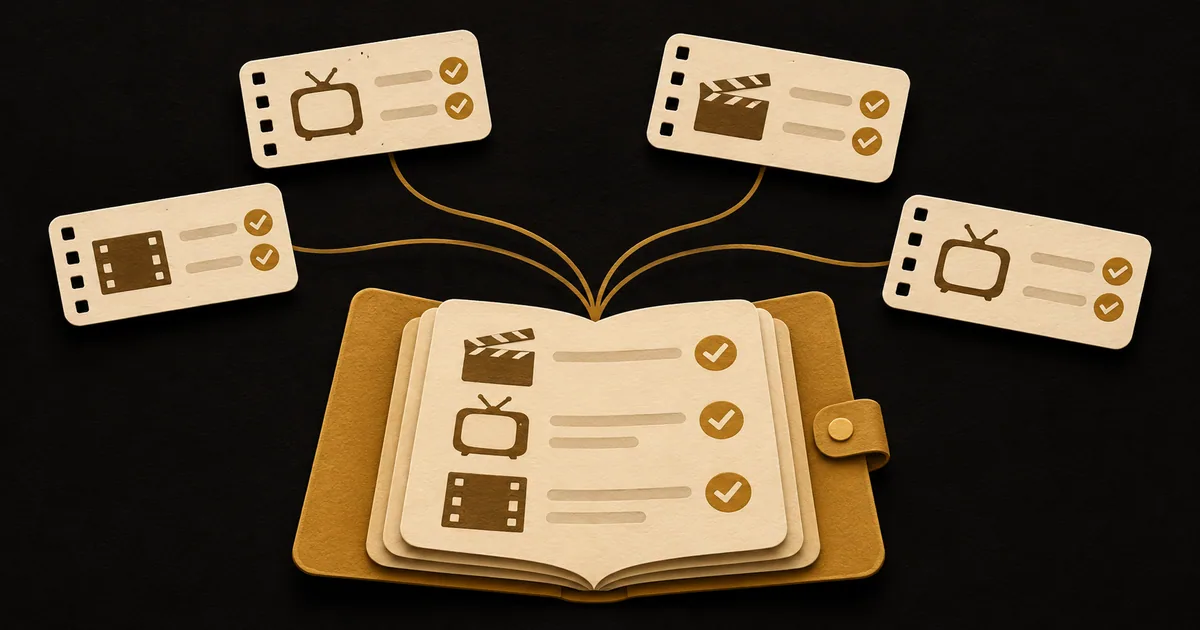
To combine watch history from different apps, bring supported records into one tracker, import one source at a time, and check titles that appear in more than one source. Keep your original exports so you can compare the result with the records you started with.
Your films might live in Letterboxd, your weekly shows in Trakt, and a few years of watching in Netflix. Moving them calls for more than uploading everything and trusting the total.
We build LazyWatch and publish this guide. It supports imports from 6 sources, with shows and movies in the same account. We checked the official export guidance and our shipped-feature roadmap on November 24, 2026.
How to combine watch history without losing track
Choose one destination account, make an inventory of your sources, then import and review each source separately. Start with the record you trust most. That's our suggested review order, not a setting that gives one source priority inside the importer.
Before you upload anything, write down where each part of your history lives:
| Where you kept records | What you want to bring | What to compare afterward |
|---|---|---|
| A TV tracker | Watched episodes and saved shows | Your actual next episode |
| A movie diary | Watched films, ratings and future picks | Watched versus saved, plus any dates that matter |
| An anime list | Progress, statuses and scores | The right series, season or part |
| A streaming profile | The viewing activity recorded there | Whether those watches belong to you |
A source file and an importer have separate limits. An export containing reviews doesn't mean every destination imports reviews. A tracker supporting rewatches doesn't prove every import preserves all repeated watches.
Keep your source accounts available while you check. You don't have to finish years of migration before logging tonight's episode.
Which histories can you bring into LazyWatch?
LazyWatch supports TV Time, Trakt, Netflix, AniList, Letterboxd and Bingers imports. The route and supported records vary by source. Imports add to existing tracking rather than overwrite it, according to our import documentation and FAQ.
| Source | Documented route | Documented records |
|---|---|---|
| TV Time | Saved data-export ZIP | Statuses, favorites, Watch Later, lists, dated episode history, per-episode rewatches, episode votes and optional episode comments and GIFs |
| Trakt | Short-code linking or an export upload | Watched history, watchlist and ratings |
| Netflix | Viewing-history CSV | Shows and movies with original watch dates |
| AniList | Your username | Anime progress, statuses and scores |
| Letterboxd | Account export upload | Watches, ratings, watchlist and optional reviews as comments |
| Bingers | Export ZIP | Shows, movies, episode dates, ratings, reactions, favorite characters, rewatches and lists |
Use each source's own import option. Don't put different services' files into one spreadsheet and expect that combined file to work.
The table describes supported records. It doesn't promise that every source has the same detail or that every field transfers unchanged.
How do you prepare Netflix and Letterboxd exports?
Download each export from its original service and keep an untouched copy. Netflix supplies a profile-level viewing-history CSV. Letterboxd supplies an account export containing CSV documents in a ZIP. Those are different records, so give each to its matching importer.
Netflix's official instructions say to open Account in a browser, select Profiles, choose your profile, then open Viewing activity. Select Download all at the bottom for the CSV.
Choose the profile you actually watched on. If several people shared it, inspect the file before treating every entry as your own history. Our Netflix import guide covers that route in detail.
Letterboxd's export guidance places account export in Settings and says exporting requires a desktop browser. Save the complete bundle, then follow the Letterboxd import prompts in LazyWatch. Our Letterboxd import guide explains the optional review transfer too.
For Trakt, follow the Trakt import guide for short-code linking. Choose the source account containing your records before authorizing the connection.
Store downloads in folders named for the source and export date. Work from copies if you want to inspect them in a spreadsheet.
What should you check after each import?
Check a small sample that can expose different problems before starting another import. Include a partly watched show, a completed title, a saved title and something recorded in more than one source. Compare individual records as well as the library total.
Wait for the completion notification. Anything unmatched waits in Fix matches.
Use this checklist:
- Current progress: does your partly watched show stop at the episode you finished?
- Title identity: is this the right film, remake or anime entry?
- Watched versus saved: did a future pick remain something you haven't watched?
- Ratings: does a score you remember appear as expected?
- Dates and rewatches: do important viewing records match the source?
- Optional writing: if you brought reviews or comments, inspect a familiar one.
For example, suppose Netflix records a film you also logged in Letterboxd. Open that film after the first import, note what arrived, then check it again after the second. That gives you a concrete way to see what changed.
Keep a short note of discrepancies. A title, year, source and missing record will help more than “the numbers look wrong.”
What happens when the same title appears in several apps?
Separate the title from the viewing event. The same film listed in 2 sources might describe one evening, or 2 real rewatches. Check the dates and source records before deciding that an apparent overlap should be removed.
LazyWatch documents that imports only add and don't overwrite existing tracking. That statement doesn't specify every rule for matching watches across different sources or handling conflicting ratings.
Don't treat it as a guarantee that every overlap will resolve the way you expect. Nor should you assume one source's score will replace another because you imported it later.
If something looks wrong, keep the original records and use Contact support with a specific example. You can also undo an import, which removes only what that import brought in. Check which import you're undoing before taking that step.
Is importing the same as keeping every app in sync?
No. Importing brings supported records into your destination account. It doesn't establish continuous two-way sync among every service you used. A Netflix CSV contains the viewing history in that download; it isn't a live connection to future watching.
Pick where you'll log your next episode. You can bring in a newer export later, but check the result rather than treating several apps as one permanently synchronized diary.
In LazyWatch, Continue watching keeps partly watched shows in view, and a swipe marks an episode watched. For films, keep future picks in Watchlist and finished films in your watched diary.
If some older watching never made it into an export, Build your history offers a manual route through remembered titles. Add what you know. Leave uncertain dates unknown rather than inventing a neat archive.
Our guide to tracking shows across streaming services covers the ongoing habit once the older records are together.
What should you do when the histories are together?
Check the show you're watching now before browsing its episode conversation. Accurate progress helps you return to the right place, and the record becomes useful immediately. You can keep checking older entries without putting tonight's watching on hold.
Every episode and movie in LazyWatch has Comments. That gives the reaction you've been carrying around somewhere to go, even if nobody in your usual group chat watches that show.
Bring the records you've kept, check the overlaps, then pick up with the episode you actually need next.
Common questions
Can I combine Netflix and Letterboxd history in LazyWatch?
Yes. Upload your Netflix viewing-history CSV through Netflix import and your Letterboxd export through Letterboxd import, using the same LazyWatch account. Check films recorded in both sources after each transfer.
Does importing from several apps guarantee no duplicate watches?
The current documentation says imports only add and don't overwrite existing tracking. It doesn't specify every cross-source duplicate or rating-conflict rule. Check overlapping titles and individual viewing records before relying on totals.
Will future watches sync between all my apps?
Don't assume so. File imports bring over the records in the file. The documented imports don't establish continuous two-way sync between all your source apps and LazyWatch.
Sources
- combine watch history
- watch history migration
- Netflix import
- Letterboxd import
- Trakt import
- TV and movie tracking